Whitespace Remover - Remove Extra Spaces and Tabs
Clean repeated spaces and tabs, trim line edges, and merge or delete blank lines across your text.
Need to strip only spaces at the beginning and end of each line? Use our Leading and Trailing Spaces Remover.
🔒 Data Safety: We process everything securely and never store or share it.
How to Use
- Add the text with extra spaces, tabs, or blank lines into the input box above.
- Pick a clean mode, choose how to handle empty lines, and check your spacing rules.
- View the removed character count on the summary bar and copy or download the cleaned text.
Options Explained
- Clean Mode: Select Normalize Text (Clean Extra Spaces) to clean spacing using the checkboxes and empty-line rules. Select Remove All Spaces to strip every space and tab character across your entire text.
- Empty Lines: Choose Merge Empty Lines to collapse consecutive blank lines into one single empty line between paragraphs. Choose Remove Empty Lines to delete all blank lines, or Keep Empty Lines to preserve them.
- Extra Spaces: Collapses multiple consecutive spaces and Unicode horizontal spaces like non-breaking spaces into one standard space. Uncheck this box if you want to keep repeated spaces between words inside each line.
- Tabs to Space: Converts single tabs, repeated tabs, and mixed tab-and-space clusters into a single standard space character. Uncheck this option when you need to preserve tab characters in tab-separated lists or tables.
- Trim Lines: Removes leading and trailing spaces, tabs, and Unicode spaces from the start and end of each line. Uncheck this box to keep original line indentation while cleaning extra spaces inside your lines.
- Keep Line Breaks: Activates in Remove All Spaces mode to preserve line breaks while stripping all spaces and tabs. Uncheck this box to delete line breaks too and merge all characters into one continuous line.
Key Features
- Collapse repeated spaces, tabs, and mixed tab-and-space clusters into a single standard space between words.
- Convert non-breaking spaces and full-width CJK spaces into regular spaces while keeping accented letters and emojis intact.
- Control blank lines with three dedicated modes to merge consecutive gaps, remove empty lines, or keep them.
- Strip every space and tab in Remove All Spaces mode while keeping or deleting line breaks.
- Trim leading and trailing spaces on each line and standardize Windows, Unix, and Mac line breaks.
- Count removed whitespace characters and remaining lines locally in your browser with zero server data storage.
About This Online Whitespace Remover
The whitespace remover is a client-side text tool that cleans unwanted spaces, tabs, and blank lines. It normalizes standard and Unicode spacing, trims line edges, filters empty lines, or removes all spaces.
Developed and maintained by the PU Tools team, this tool gives you fast, accurate, safe, and easy results in just a few clicks.
Common Use Cases
- Copied Document Cleanup: Clean uneven spaces, stray tabs, and extra blank lines after copying text from PDFs, websites, or emails.
- Spreadsheet List Preparation: Trim hidden leading or trailing spaces and double spaces from names, addresses, or product lists before importing.
- Compact Text Formatting: Use Remove All Spaces mode to strip spaces from phone numbers, bank account numbers, or tracking codes.
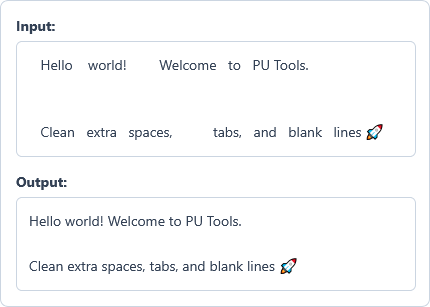
Example Input and Output
Example Input
   Hello    world!  	  Welcome   to   PU Tools.


   Clean   extra   spaces,		tabs,   and   blank   lines 🚀
Options used: Clean Mode: Normalize Text (Clean Extra Spaces) | Empty Lines: Merge Empty Lines | Extra Spaces: ON | Tabs to Space: ON | Trim Lines: ON | Keep Line Breaks: OFF
Example Output
Hello world! Welcome to PU Tools.

Clean extra spaces, tabs, and blank lines 🚀
The remover collapses extra spaces and tabs, trims line edges, merges blank lines, and keeps the emoji.
Frequently Asked Questions
How do I remove extra spaces while keeping tab characters in my text?
Keep Extra Spaces checked and uncheck Tabs to Space in Normalize Text mode. The tool collapses repeated spaces between words while leaving every tab character untouched across your lines.
What is the difference between Merge Empty Lines, Remove Empty Lines, and Keep Empty Lines?
Merge Empty Lines collapses multiple consecutive blank lines into one empty line to preserve paragraph spacing. Remove Empty Lines deletes all blank lines completely, whereas Keep Empty Lines leaves every blank line intact.
How can I strip all spaces and line breaks into one continuous block of text?
Select Remove All Spaces in the Clean Mode menu and uncheck the Keep Line Breaks option. The remover deletes every space, tab, and line break to join all characters into one block.
How does the tool handle non-breaking spaces and full-width spaces?
The remover treats non-breaking spaces and full-width spaces just like regular space characters during cleaning. It converts them into standard spaces during normalization or deletes them completely in Remove All Spaces mode.
How can I keep line indentation while cleaning extra spaces inside my lines?
Uncheck the Trim Lines box while keeping Normalize Text mode and Extra Spaces enabled. This stops the tool from stripping spaces at the start and end of each line.
Is my text saved or sent anywhere when I remove whitespace?
No, all space removal, tab conversion, and empty-line filtering happen directly inside your web browser. We never transmit, record, or store your input text or cleaned results on any server.